

AWS
Add KYA token enforcement to a website or API on AWS, using AWS Lambda functions, with optional AWS WAF rules.
Add KYA token enforcement to a website or API on Amazon Web Services (AWS). Depending on whether you use Amazon CloudFront or Amazon API Gateway, you'll run a small piece of code that AWS invokes automatically on each request to check for a valid kya token before the request reaches your origin or backend. For what a kya token is and why verification works this way, see How it works in Enforce KYA-Based Access Control.
Before you start: you'll need an AWS account. Each walkthrough starts from creating your distribution or API Gateway, so if you already have one, skip ahead to the step after it.
AWS terms used below
- Lambda@Edge, an AWS Lambda function that CloudFront runs at its edge locations, close to the visitor, before a request reaches your origin.
- Lambda Authorizer, an AWS Lambda function that API Gateway invokes on each request to decide whether to allow or deny it before it reaches your backend. It only returns an allow or deny decision for each request; it can't transform or forward the request the way Lambda@Edge can. (API Gateway's built-in JWT Authorizer won't work here, since it doesn't support the ES256 algorithm KYAPay tokens use.)
- AWS WAF, a web application firewall that inspects incoming requests and can allow, block, or challenge them based on rules you define. Its Bot Control managed rule group labels each request by bot category (e.g. a known search engine crawler versus an unrecognized automated client).
Identify your setup
Two questions determine which setup below applies to you.
Amazon CloudFront, for a website. Amazon API Gateway, for an API.
Bots only, letting human visitors through while enforcing tokens on bots. Bots + humans (all), requiring a valid token from every caller.
Together, these answers point you to one of four setups below: CloudFront or API Gateway, each with either bot filtering or blanket enforcement.
Using a different AWS service in front of your website or API? Reach out at [email protected] and we can help you with a solution.
Follow the matching setup
Select the tab below that matches your product, then choose which traffic should require a token. Each sub-tab below walks through its setup start to finish.
This path attaches an AWS WAF Web ACL to your CloudFront distribution, so only bots need a token. AWS WAF evaluates each request before your Lambda@Edge function runs. It lets bots you trust through, blocks other bots that don't carry a token, and sends everyone else a browser challenge that human visitors pass automatically. Your Lambda@Edge function then verifies any token that is present.
-
Create a distribution in front of your website.
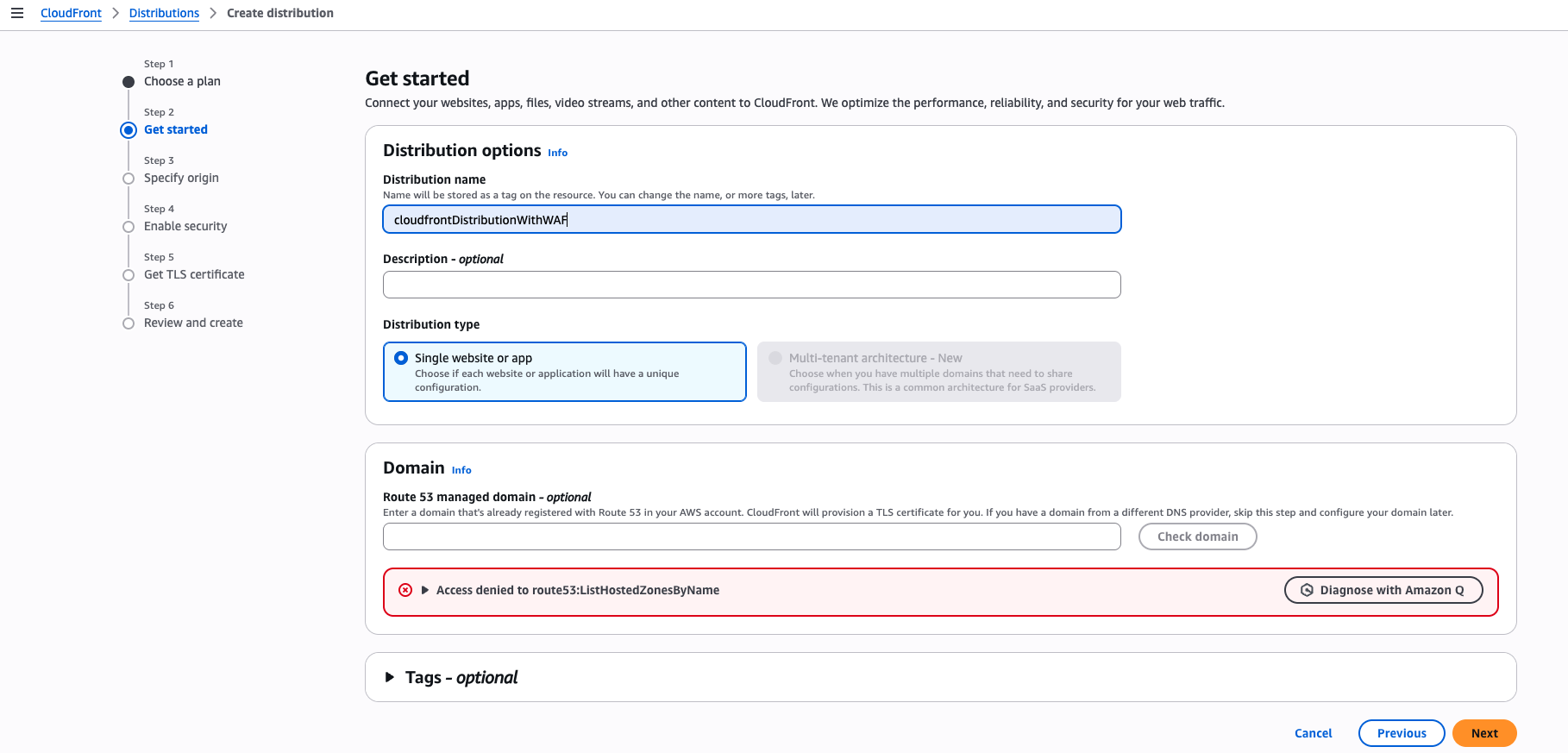
Get started: name your distribution and select Single website or app.
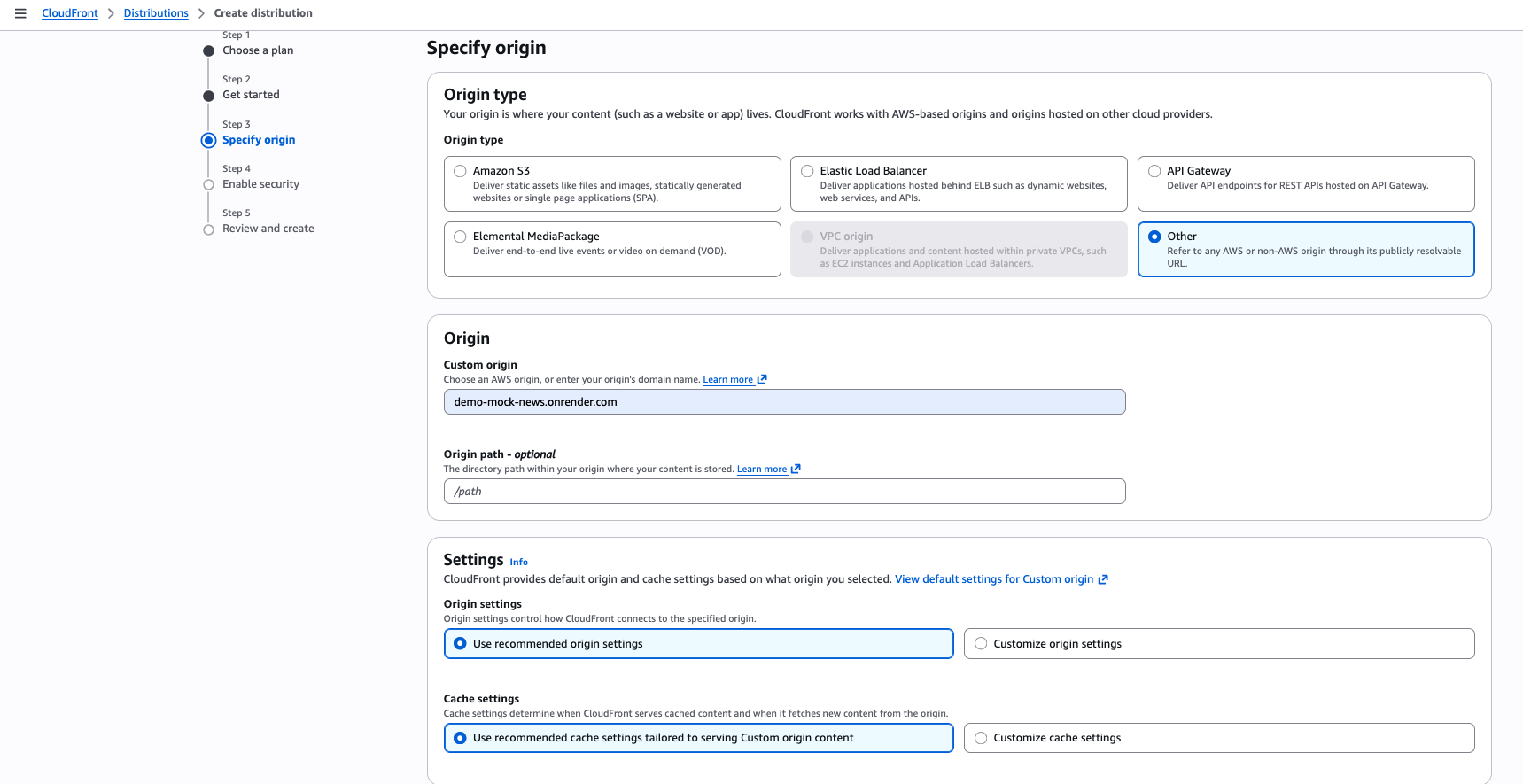
Specify origin: enter your website's domain as the origin, and keep the recommended origin and cache settings.
When you reach Enable security, keep AWS WAF security protections enabled. This creates a Web ACL for your distribution, which you'll add rules to in steps 5 and 6.
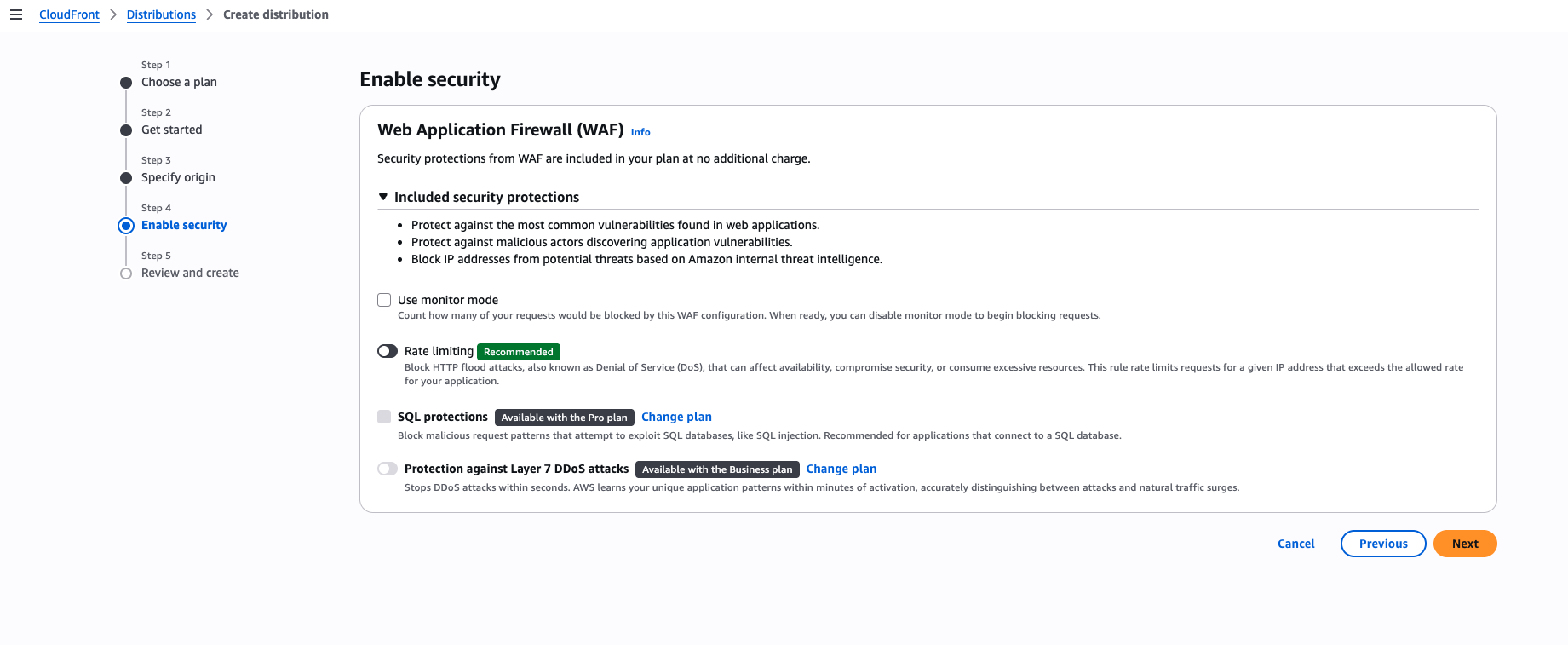
Enable security: AWS WAF protections are included, so CloudFront creates a Web ACL for this distribution.
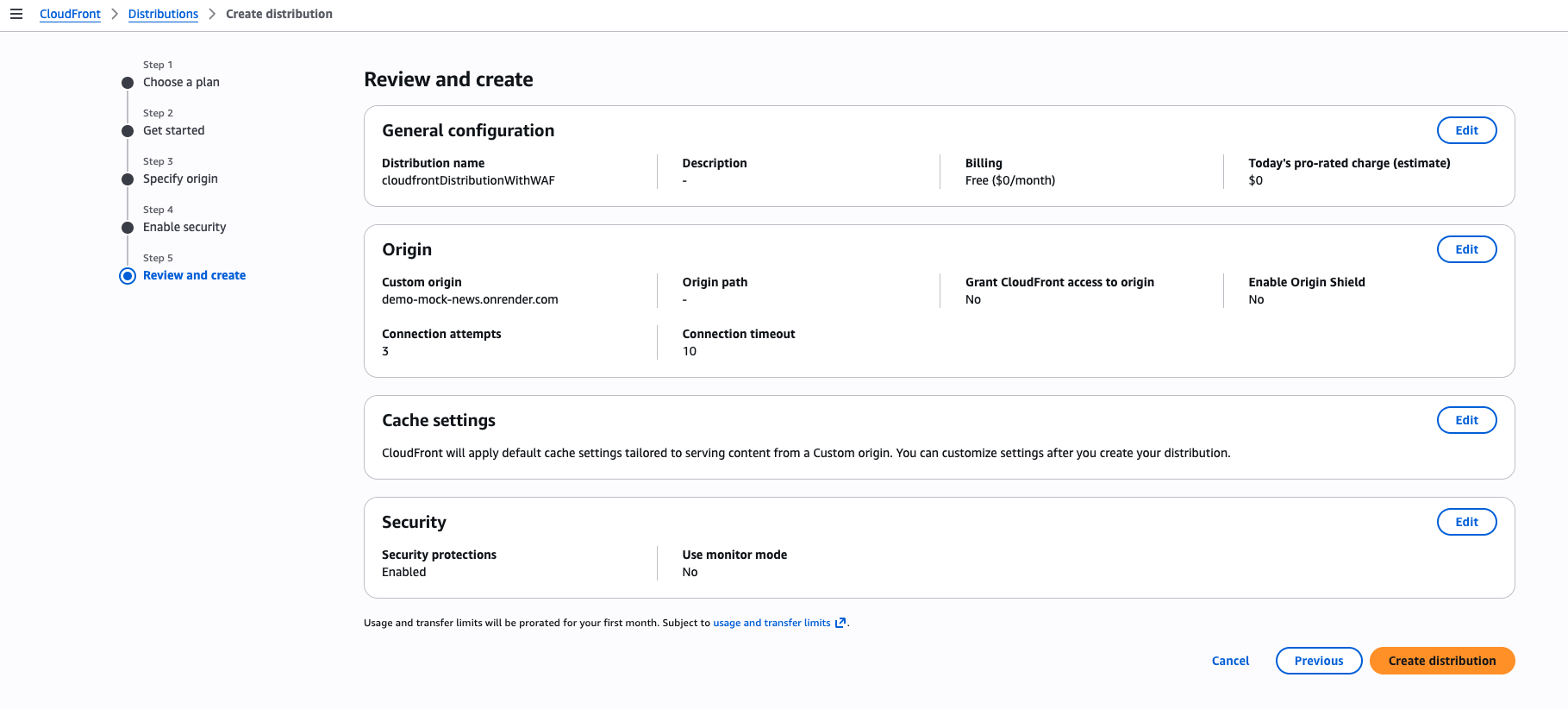
Review and create: confirm Security protections shows Enabled before you create the distribution.
-
Create your Lambda@Edge function.
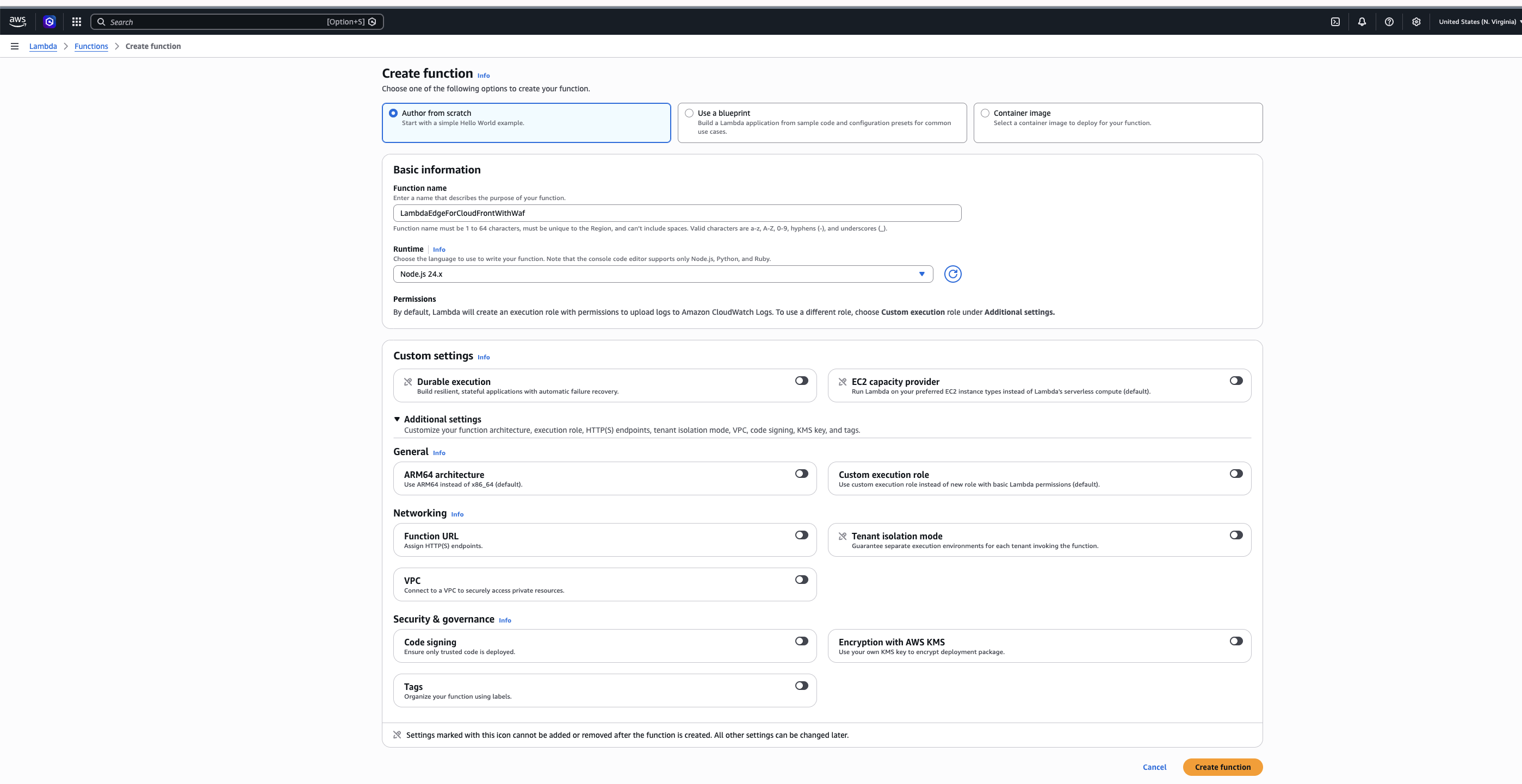
Create function: choose Author from scratch and a Node.js runtime.
Ensure it is created in the
us-east-1(N. Virginia) region. CloudFront's control plane runs there and replicates edge functions from it, regardless of which region your CloudFront distribution otherwise uses. Lambda@Edge functions are also subject to their own restrictions and quotas, which differ from a regular Lambda function. Leave ARM64 architecture off, since Lambda@Edge only supports x86_64. The function's execution role must also allow CloudFront to run it at the edge. You can keep the default role and update its trust policy after creating the function; see Lambda@Edge permissions. -
Start from this path's example Lambda@Edge code, which verifies the
kyatoken when a request includes one. AWS WAF, which you'll configure next, decides which requests must include one. The code depends on theaws-jwt-verifypackage, which the Lambda console editor doesn't include, so install it locally and upload the code and itsnode_modulesfolder together as a .zip file. Adapt the code to your needs, then publish a version of the function (Actions > Publish new version). -
In the AWS WAF console, open the Web ACL that CloudFront created for your distribution in step 1. It's listed under Protection packs (web ACLs) with a name starting with
CreatedByCloudFront.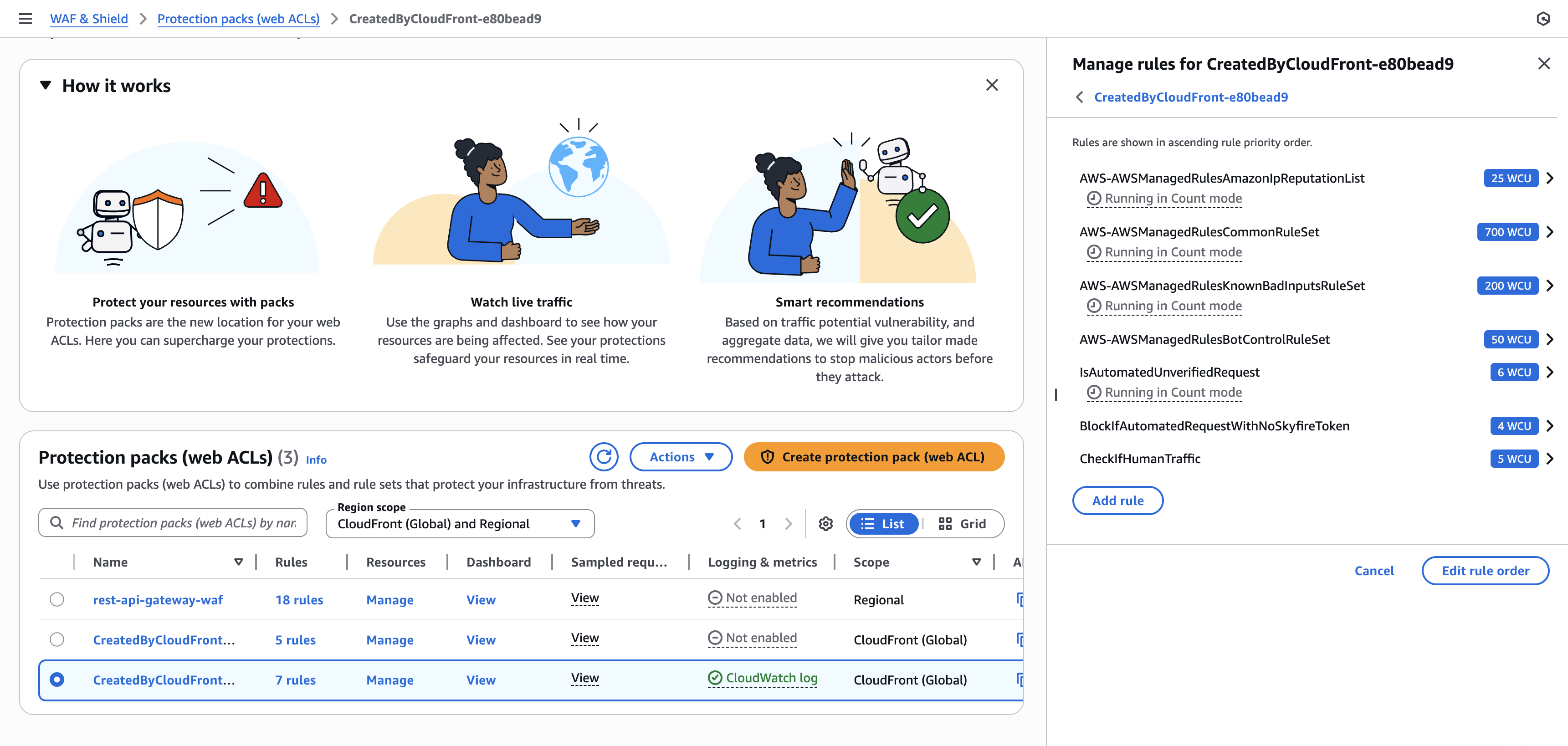
The finished Web ACL from the demo, with its rules in priority order. The last three are the custom rules you'll add in step 6.
-
Add the AWS WAF Bot Control managed rule group to the Web ACL. It labels each request by bot category, for example a verified search engine crawler or an unverified automated client. The demo uses the Targeted inspection level, and some of the labels the rules in step 6 match on only exist at that level.
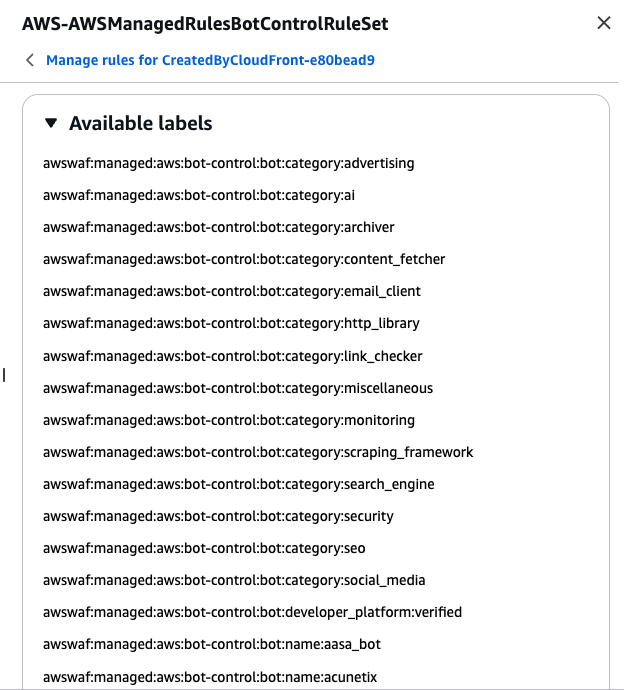
Some of the labels Bot Control adds to requests. The rules in step 6 match on these labels.
In the rule group, set the categories you trust to Allow. An Allow action lets the request through immediately and skips every rule after it, so these bots never need a token. The demo allows
CategorySearchEngineandCategorySeo.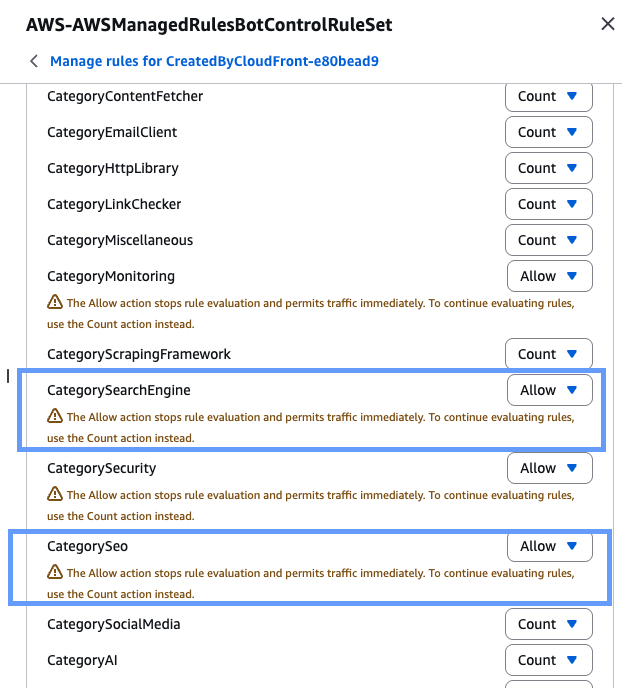
Bot Control category overrides, with CategorySearchEngine and CategorySeo set to Allow.
-
Add three custom rules, placed after the Bot Control rule group, since they match on the labels it adds.
IsAutomatedUnverifiedRequest (Count) adds a single label to any request Bot Control flagged as an unverified bot or automated browser. Count doesn't block anything; it groups those requests so the next rule can target them.
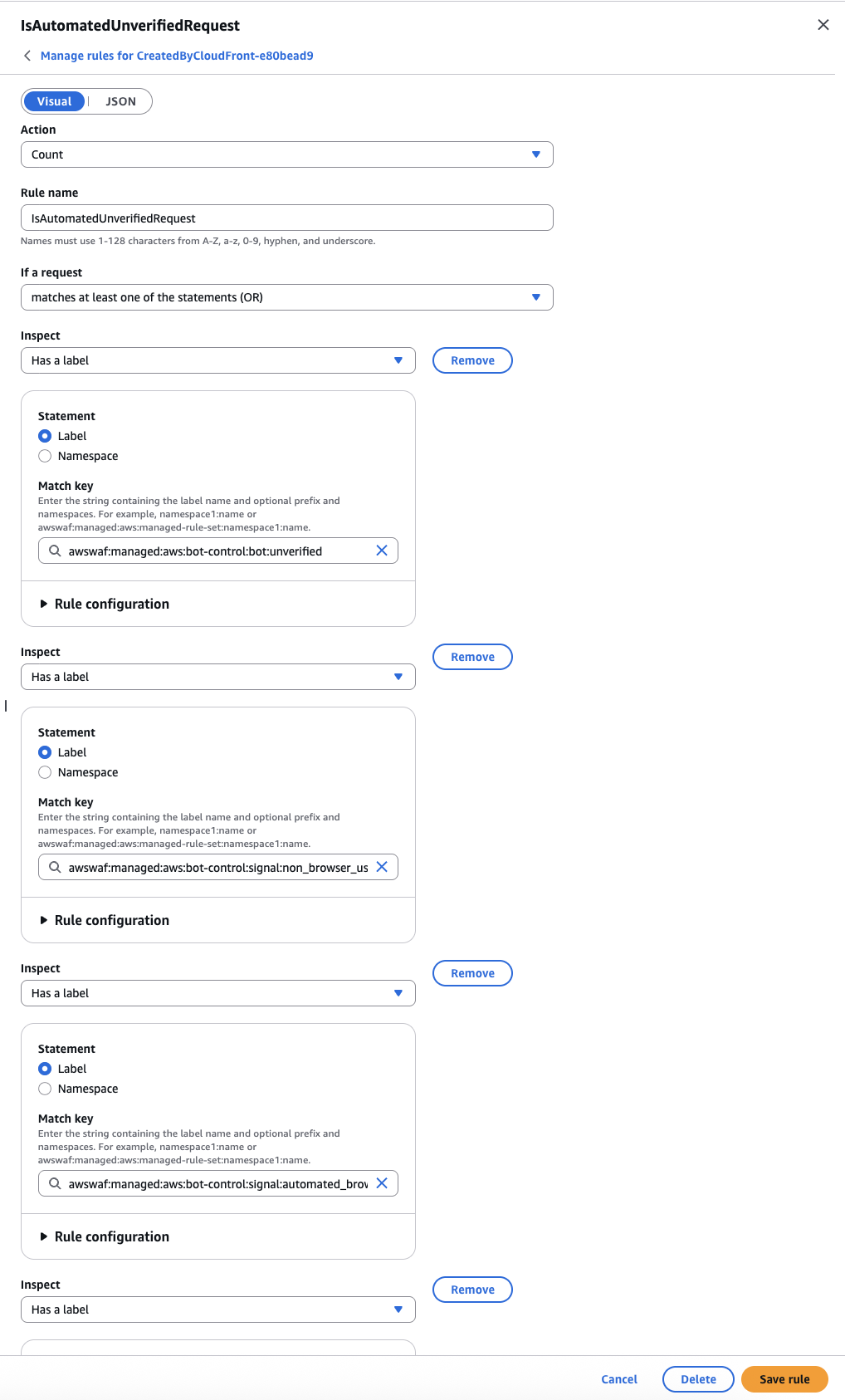
IsAutomatedUnverifiedRequest: a Count rule that matches any of five Bot Control labels and adds one label of its own.
JSON: IsAutomatedUnverifiedRequest
  {
    "Action": {
      "Count": {}
    },
    "Name": "IsAutomatedUnverifiedRequest",
    "Priority": 9,
    "RuleLabels": [
      {
        "Name": "IsAutomatedUnverifiedRequest"
      }
    ],
    "Statement": {
      "OrStatement": {
        "Statements": [
          {
            "LabelMatchStatement": {
              "Key": "awswaf:managed:aws:bot-control:bot:unverified",
              "Scope": "LABEL"
            }
          },
          {
            "LabelMatchStatement": {
              "Key": "awswaf:managed:aws:bot-control:signal:non_browser_user_agent",
              "Scope": "LABEL"
            }
          },
          {
            "LabelMatchStatement": {
              "Key": "awswaf:managed:aws:bot-control:signal:automated_browser",
              "Scope": "LABEL"
            }
          },
          {
            "LabelMatchStatement": {
              "Key": "awswaf:managed:aws:bot-control:targeted:signal:automated_browser",
              "Scope": "LABEL"
            }
          },
          {
            "LabelMatchStatement": {
              "Key": "awswaf:managed:aws:bot-control:targeted:signal:browser_automation_extension",
              "Scope": "LABEL"
            }
          }
        ]
      }
    },
    "VisibilityConfig": {
      "CloudWatchMetricsEnabled": true,
      "MetricName": "BotsRequireSkyfireToken",
      "SampledRequestsEnabled": true
    }
  }
BlockIfAutomatedRequestWithNoSkyfireToken (Block) blocks requests with that label unless the token header holds a value shaped like a JWT. AWS WAF only checks the format here; your Lambda@Edge function verifies the token itself.
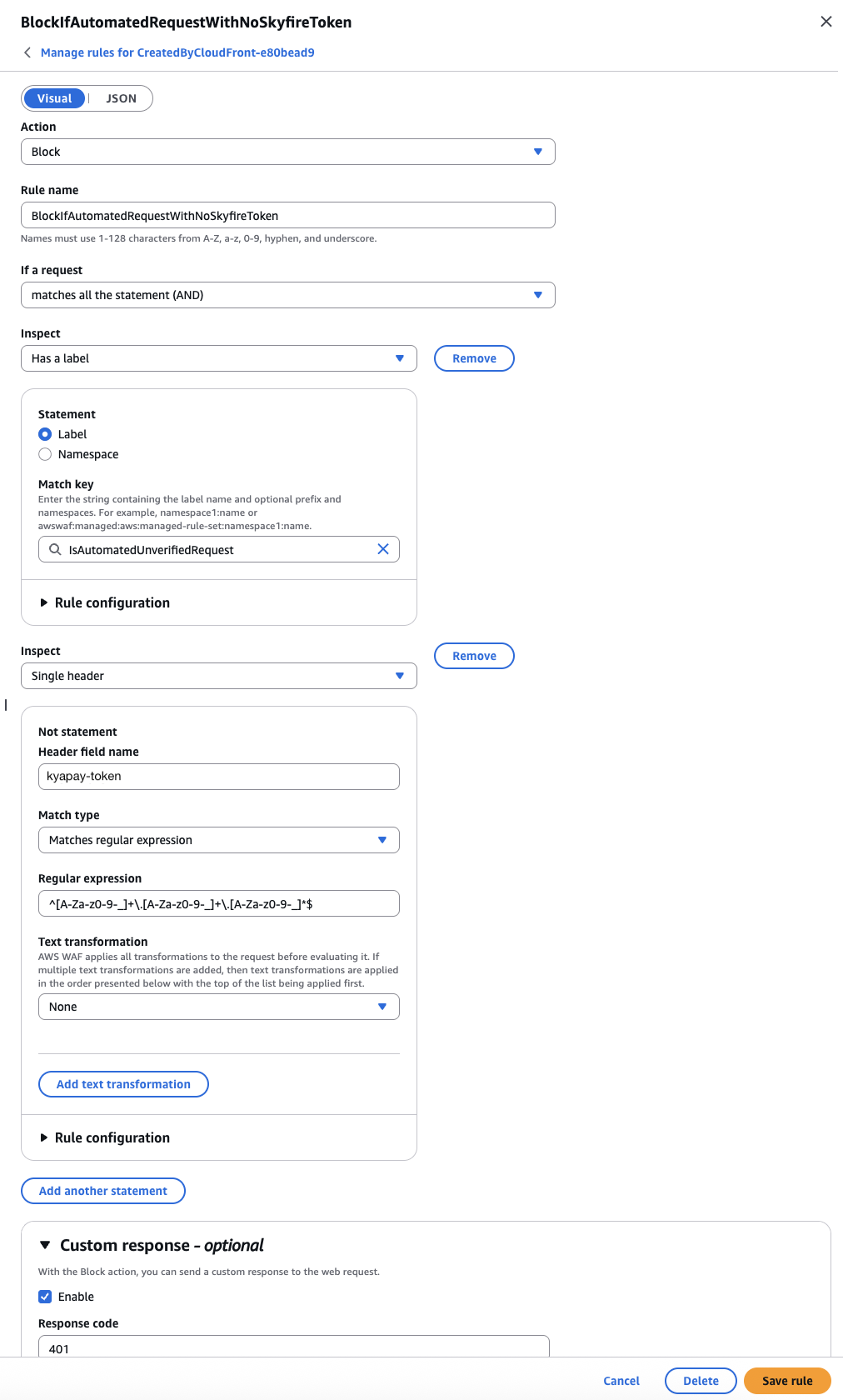
BlockIfAutomatedRequestWithNoSkyfireToken: blocks labeled requests unless the token header matches a JWT pattern.
JSON: BlockIfAutomatedRequestWithNoSkyfireToken
  {
    "Action": {
      "Block": {
        "CustomResponse": {
          "CustomResponseBodyKey": "missing-KYA-token-error",
          "ResponseCode": 401
        }
      }
    },
    "Name": "BlockIfAutomatedRequestWithNoSkyfireToken",
    "Priority": 10,
    "Statement": {
      "AndStatement": {
        "Statements": [
          {
            "LabelMatchStatement": {
              "Key": "IsAutomatedUnverifiedRequest",
              "Scope": "LABEL"
            }
          },
          {
            "NotStatement": {
              "Statement": {
                "RegexMatchStatement": {
                  "FieldToMatch": {
                    "SingleHeader": {
                      "Name": "kyapay-token"
                    }
                  },
                  "RegexString": "^[A-Za-z0-9-_]+\\.[A-Za-z0-9-_]+\\.[A-Za-z0-9-_]*$",
                  "TextTransformations": [
                    {
                      "Priority": 0,
                      "Type": "NONE"
                    }
                  ]
                }
              }
            }
          }
        ]
      }
    },
    "VisibilityConfig": {
      "CloudWatchMetricsEnabled": true,
      "MetricName": "ChallengeIfUnverifieBotWithNoSkyfireToken",
      "SampledRequestsEnabled": true
    }
  }
On this rule, enable a custom response so a blocked caller learns how to get a token. It returns
401, the recommended status for a missing token (see Handling Missing or Invalid Tokens).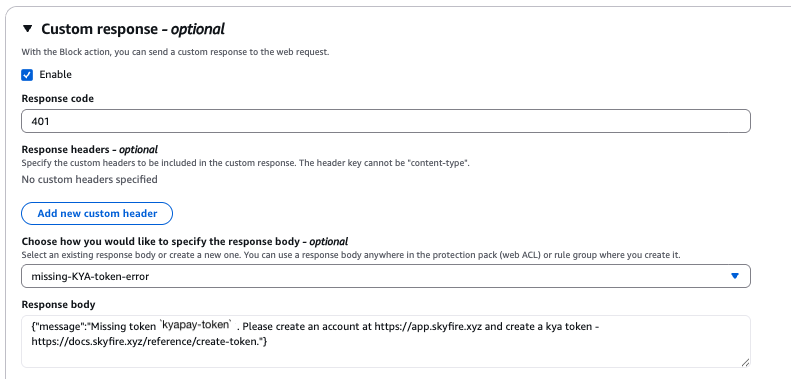
The block rule's custom response: a status code plus a JSON body that tells the caller how to get a token.
JSON: custom response body
  {
    "CustomResponseBodies": {
      "missing-KYA-token-error": {
        "Content": "{\"message\":\"ERROR: Missing token in the `kyapay-token` header. Please create an account at https://app.skyfire.xyz and create a kya token - https://docs.skyfire.xyz/reference/create-token and include it in your request in the `kyapay-token` header.\"}",
        "ContentType": "APPLICATION_JSON"
      }
    }
  }
CheckIfHumanTraffic (Challenge) challenges any remaining request that isn't a verified bot, isn't labeled automated, and has no token header. A browser completes the challenge automatically, so human visitors get through; automated clients typically can't.
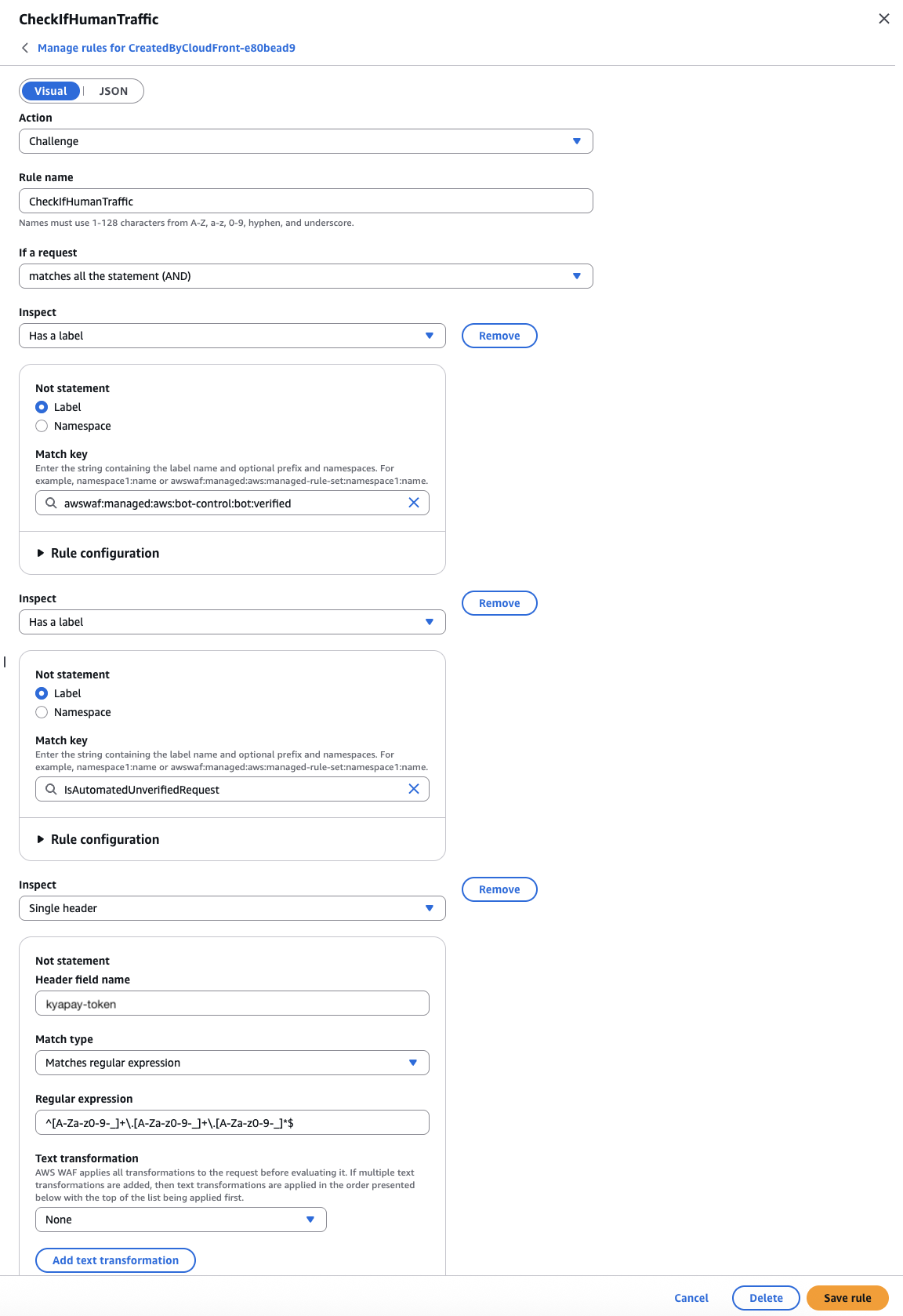
CheckIfHumanTraffic: challenges requests that match none of the earlier conditions and carry no token header.
JSON: CheckIfHumanTraffic
  {
    "Action": {
      "Challenge": {}
    },
    "Name": "CheckIfHumanTraffic",
    "Priority": 12,
    "Statement": {
      "AndStatement": {
        "Statements": [
          {
            "NotStatement": {
              "Statement": {
                "LabelMatchStatement": {
                  "Key": "awswaf:managed:aws:bot-control:bot:verified",
                  "Scope": "LABEL"
                }
              }
            }
          },
          {
            "NotStatement": {
              "Statement": {
                "LabelMatchStatement": {
                  "Key": "IsAutomatedUnverifiedRequest",
                  "Scope": "LABEL"
                }
              }
            }
          },
          {
            "NotStatement": {
              "Statement": {
                "RegexMatchStatement": {
                  "FieldToMatch": {
                    "SingleHeader": {
                      "Name": "kyapay-token"
                    }
                  },
                  "RegexString": "^[A-Za-z0-9-_]+\\.[A-Za-z0-9-_]+\\.[A-Za-z0-9-_]*$",
                  "TextTransformations": [
                    {
                      "Priority": 0,
                      "Type": "NONE"
                    }
                  ]
                }
              }
            }
          }
        ]
      }
    },
    "VisibilityConfig": {
      "CloudWatchMetricsEnabled": true,
      "MetricName": "CheckIfHumanTraffic",
      "SampledRequestsEnabled": true
    }
  }
You can reorder or extend these rules to fit your needs. The full Web ACL from the demo is in the reference repo.
-
With your function published, add a trigger: open your distribution's Behaviors tab, edit the default behavior, and under Function associations, associate the function's versioned ARN with the Viewer request event. Token verification then happens before CloudFront checks its cache.
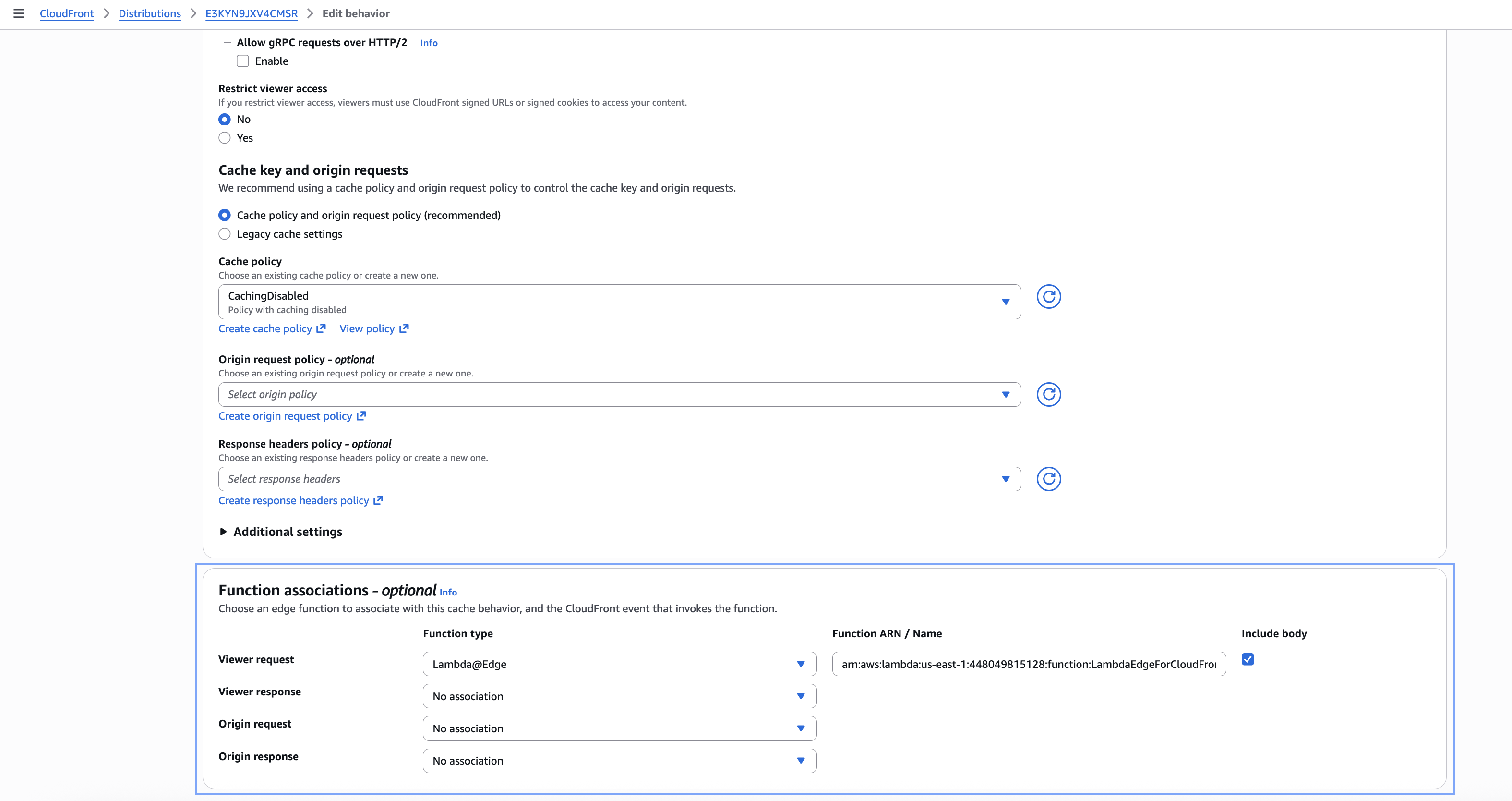
Edit behavior: under Function associations, set Viewer request to Lambda@Edge and enter the function's versioned ARN.
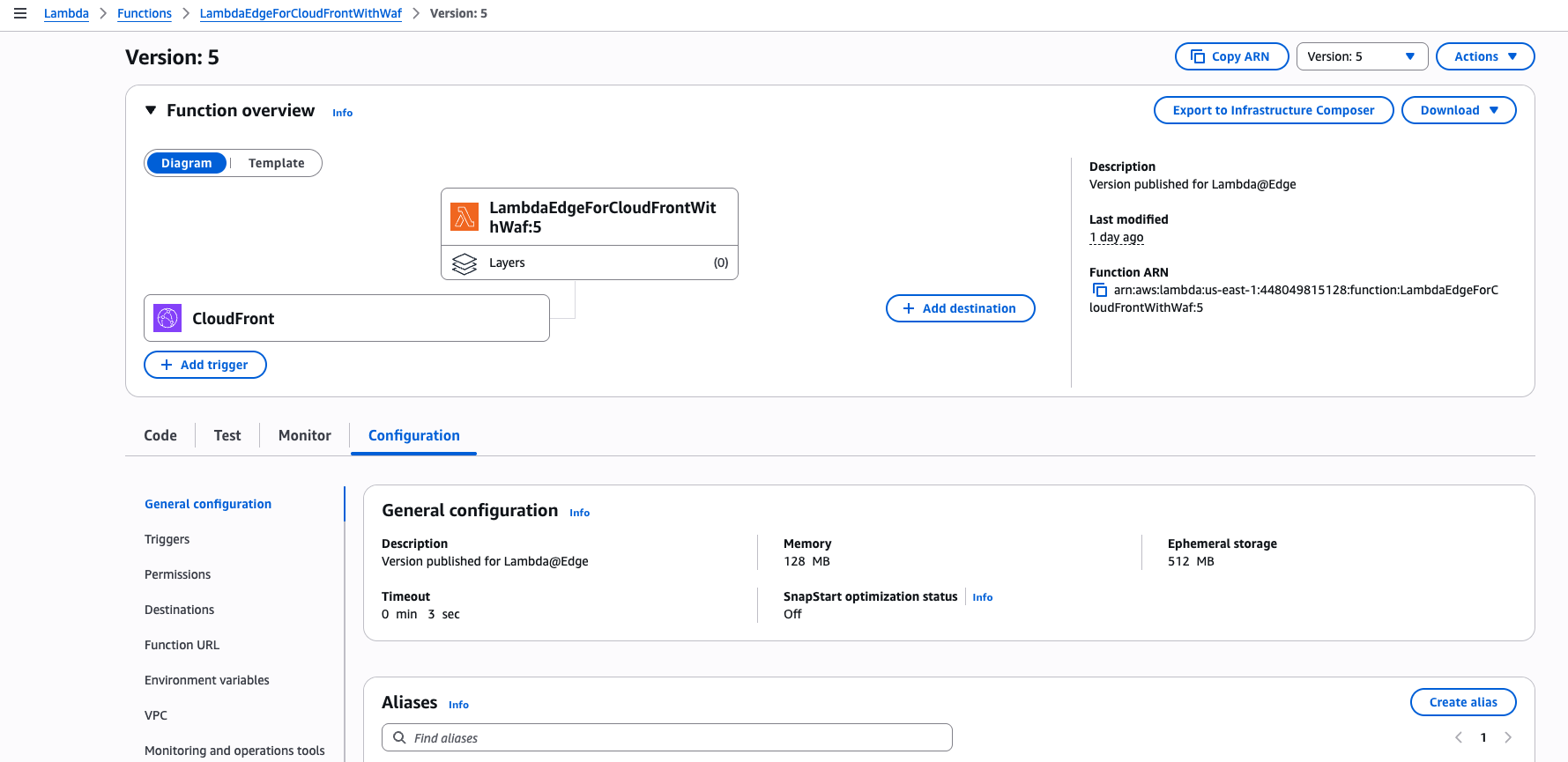
The published function version now shows CloudFront as its trigger.
Error responses
Return the status codes and messages recommended in Handling Missing or Invalid Tokens: 401 for a missing token and 403 for an invalid one.
- CloudFront: your Lambda@Edge function builds the response itself, so set the status and body in its code. In the Bots only setup, the WAF block rule's custom response handles missing tokens.
- API Gateway: a Deny from your Lambda Authorizer returns
403. In the Bots + humans (all) setup, a request missing thekyapay-tokenheader returns401without calling the authorizer. API Gateway sends its own default messages; to return the recommended ones, customize the Access denied and Unauthorized gateway responses.
Demo
References
Updated about 1 month ago